

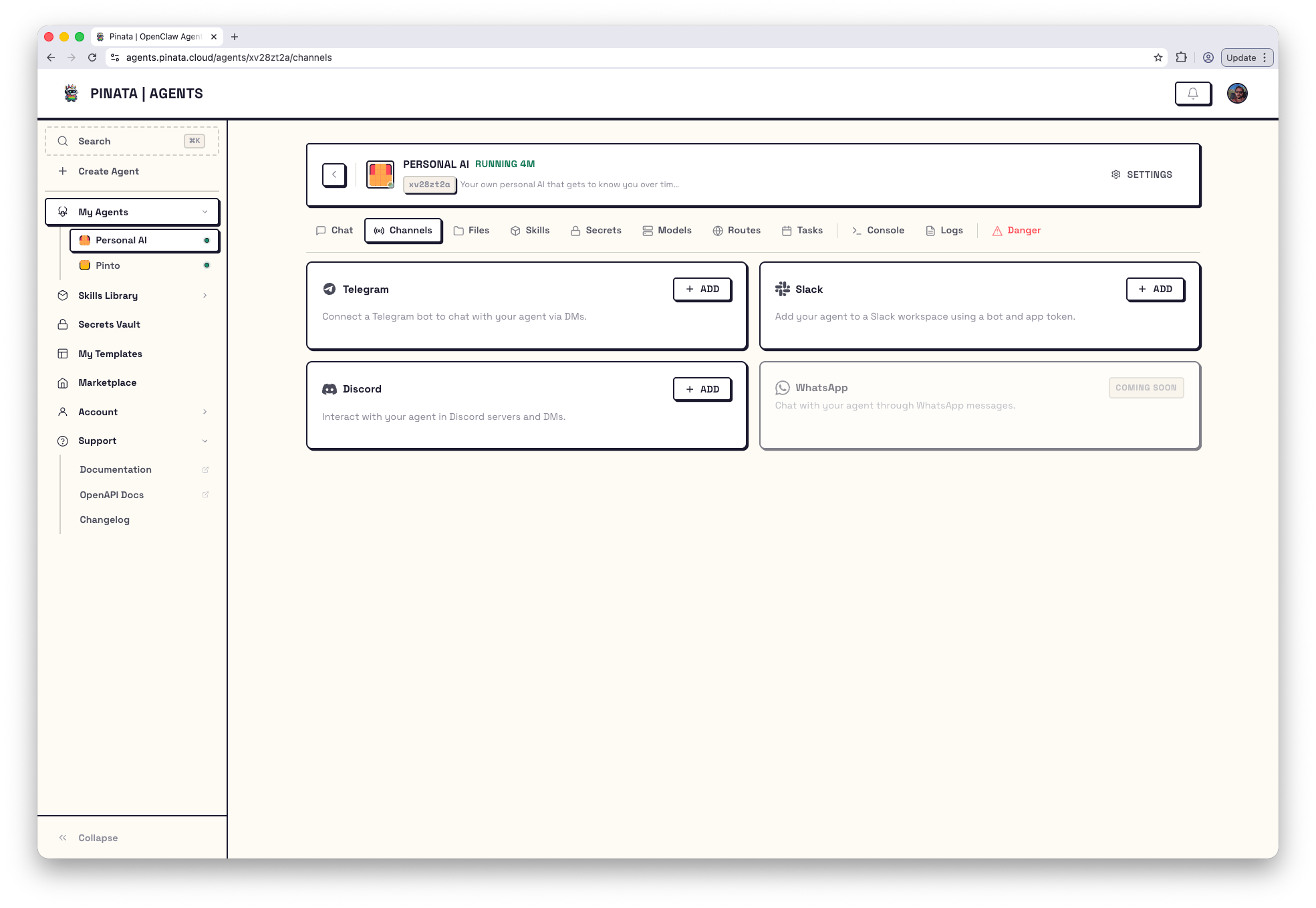
How it works
Open your agent → Channels. You’ll see one card per platform.- A card with + ADD isn’t connected yet. Click it to open the setup dialog.
- A card with ENABLED is already connected. The card shows a summary (the DM policy and a masked bot token), and a RECONFIGURE button reopens the dialog so you can update settings without losing the connection.
Telegram
This is the quickest. You need a bot token from Telegram’s BotFather.- In Telegram, message @BotFather
- Send
/newbotand follow the prompts - Copy the bot token BotFather gives you
- In Pinata: agent → Channels → + ADD on the Telegram card
- Paste the token and save
Controlling who can DM your bot
The Telegram dialog has two access controls:- DM policy —
open(anyone can message) orpairing(users must be approved first) - Allow list — a list of Telegram user IDs that are allowed to message
Slack
Slack needs a custom app with the right permissions. It’s a few more steps but everything happens once.- Go to api.slack.com/apps and create a new app
- Enable Socket Mode
- Create an App-Level Token with the
connections:writescope - Under OAuth & Permissions, add these bot token scopes:
chat:write,im:write,im:history,im:read,users:read,app_mentions:read - Install the app to your workspace
- In Pinata: agent → Channels → + ADD on the Slack card
- Paste both tokens — bot token starts with
xoxb-, app token starts withxapp-
@mentions in any channel it’s been invited to.
Discord
Same shape as Telegram — make a bot in Discord’s developer portal, copy the token, paste it in.- Go to discord.com/developers and create an application
- Under Bot, click Add Bot and copy the token (you may need to reset it once to reveal it)
- Under OAuth2 → URL Generator, check the
botscope and the permissions your bot needs - Open the generated URL to invite the bot to your server
- In Pinata: agent → Channels → + ADD on the Discord card
- Paste the bot token and save
Updating or removing a channel
- Reconfigure — click RECONFIGURE on an enabled channel. You can leave the token fields blank to keep the existing token while changing other settings.
- Remove — same dialog, Remove action. This deletes the channel config and restarts the agent’s gateway.
Channels are available for chat-oriented engines such as OpenClaw and Hermes. Channel changes take effect after the gateway restarts; Configure and Remove handle that automatically. In the current create wizard, channel setup lives under Advanced options, so you can configure it before deployment instead of waiting until the agent detail page. If you’re creating an agent via the API or CLI, pass a
channels object on POST /v0/agents for engines that support create-time channel bootstrap — see API → Create an agent.When it doesn’t work
If none of these match, check Logs for entries from
gateway/reload and the channel name, or walk through Troubleshooting.